I don’t use VMWare, so I can’t say anything definitively, but can you elaborate on what you mean by “not working”?
The configuration file “C:\Users\XXXXXX\Downloads\Win11 Scambaiting by NeeP\Win11 Scambaiting by NeeP.vmx” was created by a VMware product that is incompatible with this version of VMware Workstation and cannot be used.
Cannot open the configuration file C:\Users\XXXXXXXXXX\Downloads\Win11 Scambaiting by NeeP\Win11 Scambaiting by NeeP.vmx.
this is what i am getting
Ah that issue is with older versions of VMware Workstation. You’d need Workstation 16 for this. Update your VMware Workstation, I hope/think you can get the new one as well.
If you’re looking for a Windows 10 virtual machine, then head over to this thread: Pre-made Windows 10 Scambaiting Virtual Machine (2022)
is it easy to convert this for virtualbox use?
Can you make a premade windows 7 machine?
idk why but i can’t update vmware tools
Laughs in Oracle VirtualBox
Broadcom (owner of VMware products) made VMware Workstation Pro free to use for personal use. It used to be the more practical, feature-filled version that costed several hundred US-Dollars and was too expensive to use for scambaiting purposes unless you got some keys somewhere  Now that it’s free there is no reason to use the less practical VMware Player version anymore and instead, you can enjoy snapshots and all the other functionality which is really useful for scambaiting.
If you are new to this and want to use my scambaiting virtual machine or have used VMware Player before and would like to get the VMware Workstation Pro for free, follow this instruction:
- Create a Broadcom account at https://profile.broadcom.com/web/registration
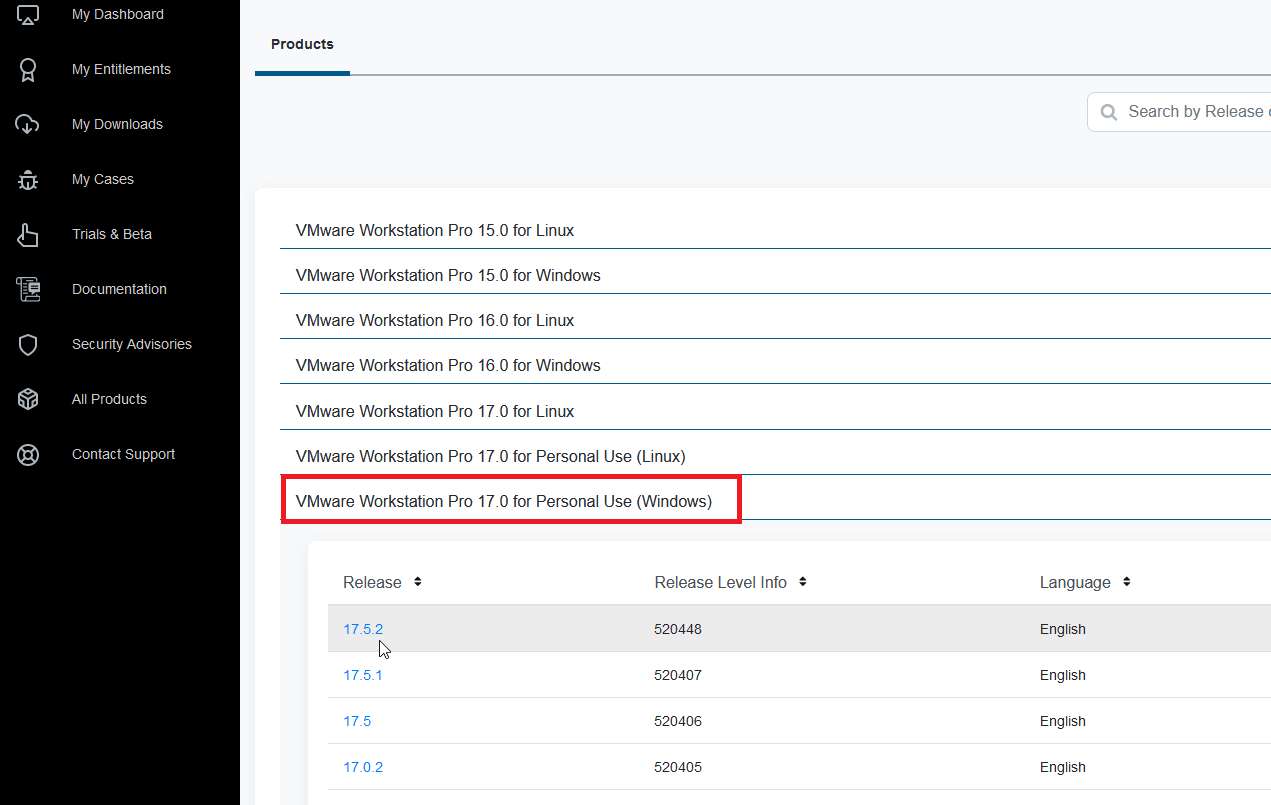
- Login into your account and go to the following link and click on the “VMware Workstation Pro 17.0 for Personal Use (Windows)” Option. Select the newest release.
https://support.broadcom.com/group/ecx/productdownloads?subfamily=VMware+Workstation+Pro
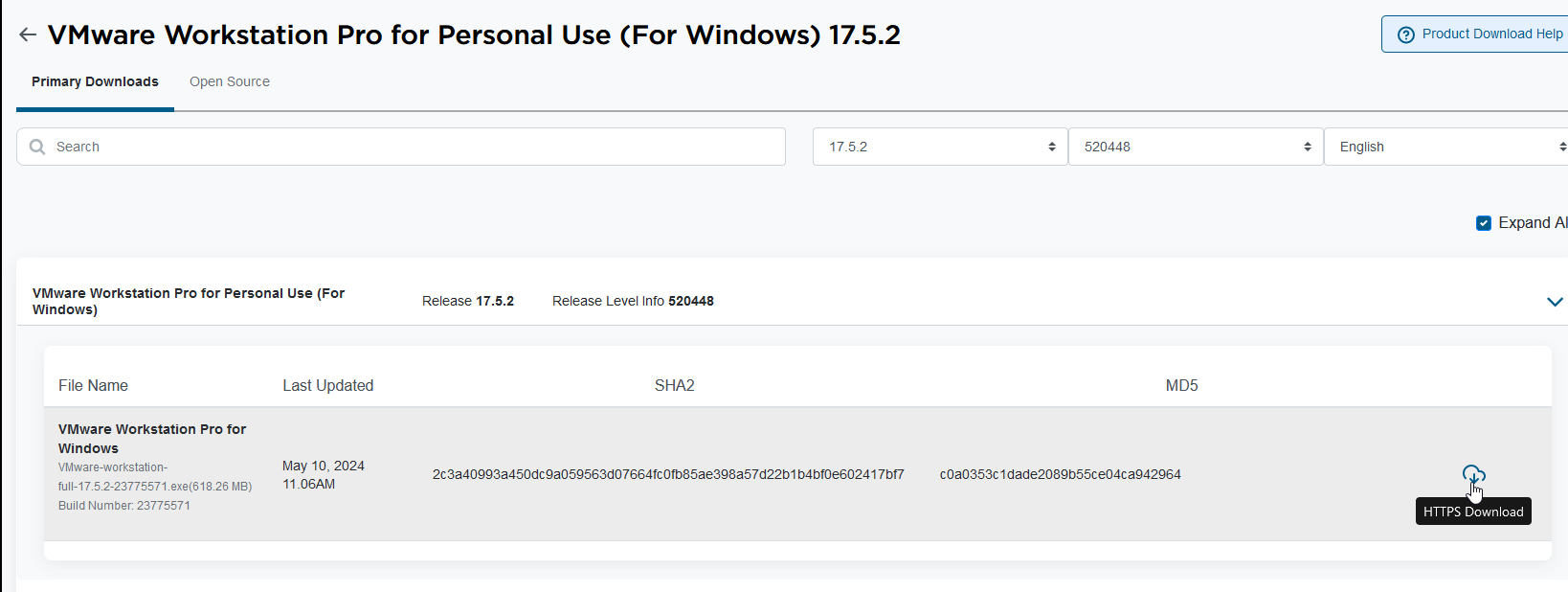
- Tick that box in the upper right corner and click on that cloud download button. It may prompt you to do some “screening”, just fill it out with some random data and proceed. Then you should come back to the same page and the download button should be available like this:
- Download and install VMware Workstation Pro 17
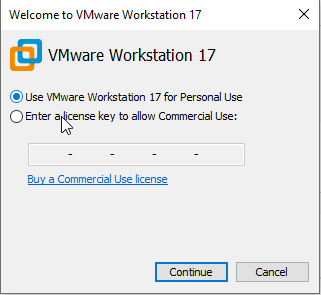
- Once downloaded, start the software. This screen should show up. Select “Personal Use”:
Hi there,
Thank you so much for the work you’re doing. I have a problem that I hope you can help with. While the Windows 10 VM works flawlessly, the Windows 11 VM can’t get past the logo. It gets stuck at booting with the message “Preparing Automatic Repair.” If you have any tips, please let me know.
Thank you
@Xerrious I’m really sorry, I didn’t see your reply. Did it get fixed by now or have we spoken about it elsewhere, via Email or so? I recommend using my Win10 VM of 2024 because that’s more updated and stealthy: Pre-made Windows 10 Scambaiting Virtual Machine (2024 version)
 VMware Workstation Update Strongly Recommended
Broadcom/VMware released a new version of VMware Workstation version 17.6.3 yesterday, after several critical vulnerabilities were found that allow an attacker to escape out of the virtual machine sandbox. This could mean, a scammer or hacker or a virus that you run inside the VM could escape and attack your host PC. VMware states that exploits are already seen in the wild so it’s strongly recommended to update to the new, patched version.
Download directly from VMware (requires Broadcom account): Please select your identity provider. - Support Portal
Download from my Mega Drive (no login needed): 401.43 MB file on MEGA
For more info on the vulnerability: Support Content Notification - Support Portal - Broadcom support portal